
What is Gemini Omni?
Gemini Omni is an independent multimodal video generation service on geminiomniai.co — not affiliated with Google. The workflow unifies text, image, and video in one interface (unlike video-only or image-only silos), so a prompt asking for "a chalkboard proof of a trig identity" can yield legible math text inside the clip. For builders, our Gemini Omni API tiers on Pro and Studio plans expose stable generation endpoints; this guide also tracks text-to-video 2026 trends (readable typography, remix, and chat-edit) so your prompts stay competitive.
- Operator: Independent service (geminiomniai.co)
- Modalities: Text, image, video (audio on roadmap)
- Trademark: "Gemini" is a trademark of Google LLC — not endorsed by Google
- Workflow focus: Templates, remix, chat-edit, 4K export
- Compared to siloed tools: Unifies capabilities often split across video-only and image-only products
Why readable on-screen text matters
Gemini Omni's unified model reasons about typography inside the frame — storefront signs, product labels, and captions stay sharp. That is the clearest visual gap versus models that blur or warp text.
Typical model — illegible text

Gemini Omni — legible in-frame text
Macro crop from a real Gemini Omni coffee prompt output — on-screen text "good morning" stays readable in motion.
Getting Started in 3 Steps
Step 1 — Create your Gemini Omni account
Sign up with email or Google SSO. You get 5 free credits instantly — enough for a few short 720p previews while you learn the controls.
Step 2 — Pick a mode
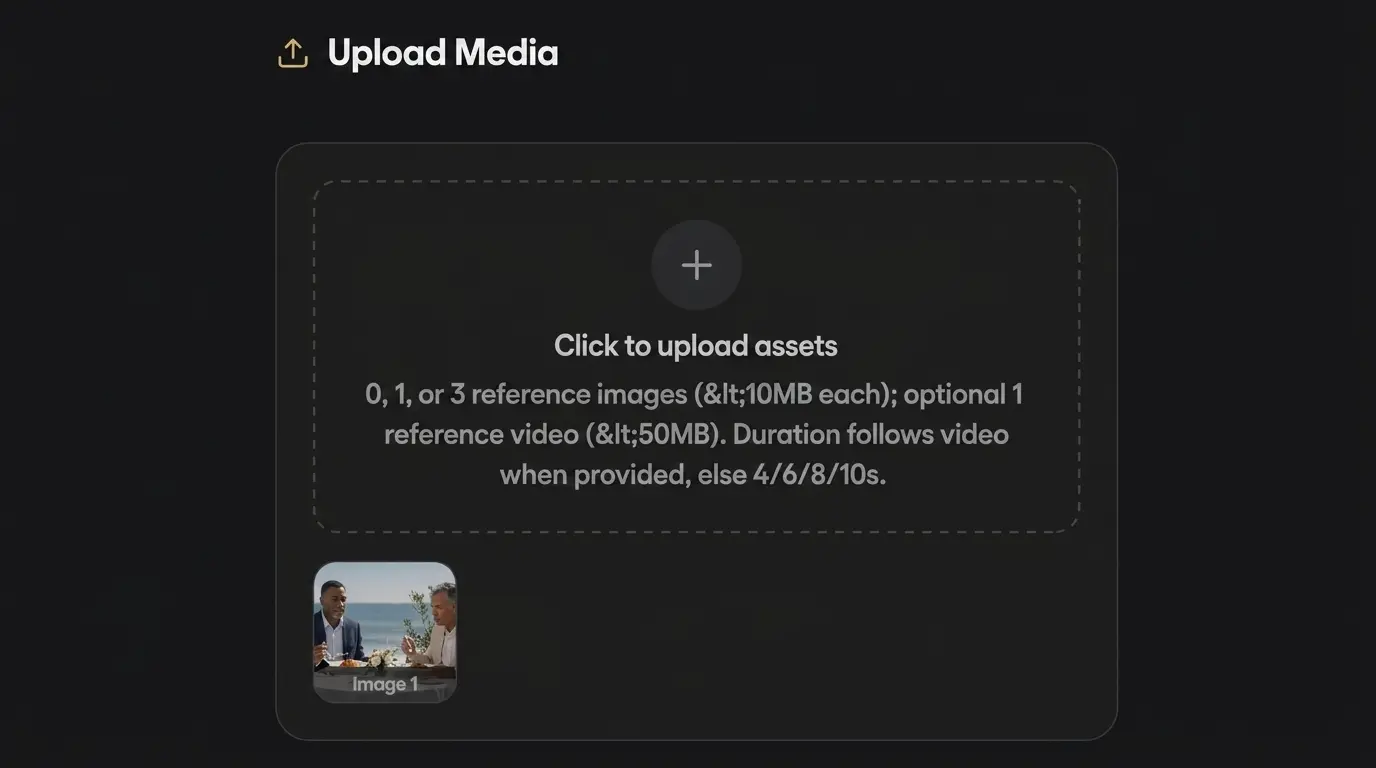
Open the Generator and choose Text-to-Video, Image-to-Video, Remix, or Chat-Edit.
Step 3 — Write your first prompt
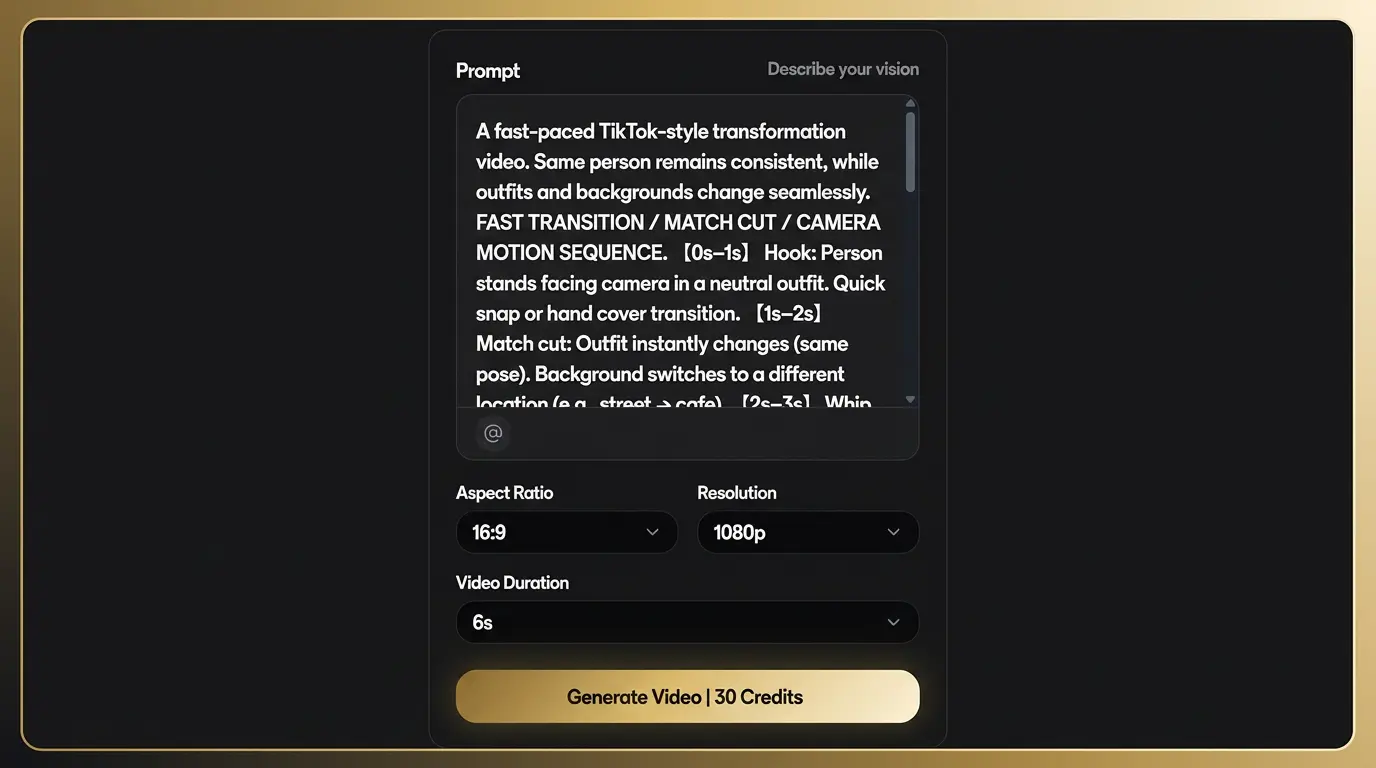
Use the formula [Subject] + [Action] + [Setting] + [Camera] + [Lighting] + [Style]. Example:
A red panda chef tossing pizza dough, in a cozy mountain kitchen, low-angle close-up, warm tungsten light, Pixar 3D style.
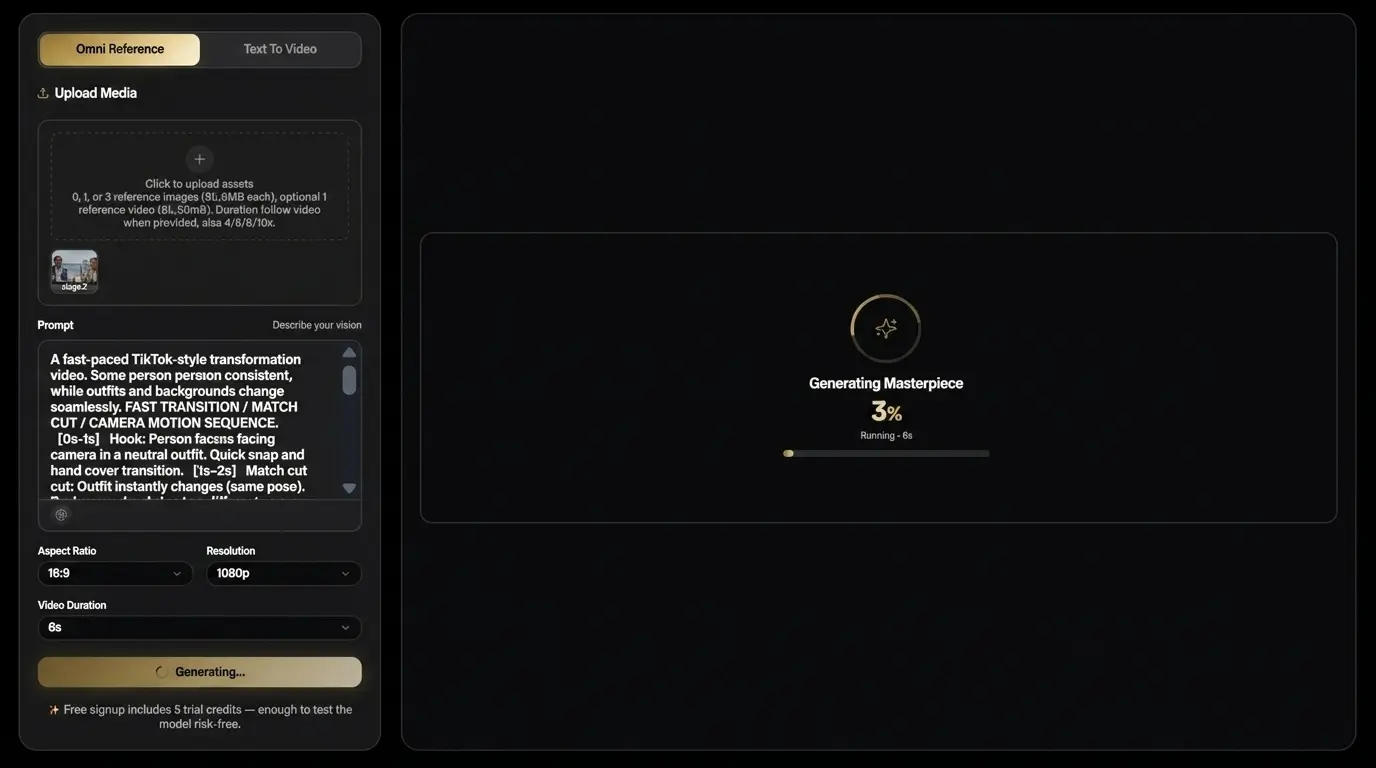
Hit Generate. In under 90 seconds, you'll have your first Gemini Omni clip.
Start with 5 free credits
Jump straight to Text-to-Video — paste the sample prompt above or write your own.
Open the generator →Prompt Engineering for Gemini Omni Video
Gemini Omni rewards specificity in a way single-modality models did not. Because the model reasons about text and visuals together, every clause in your prompt matters — including punctuation and clause order.
3.1 The 6-element prompt formula
Fill in each slot — your prompt updates live on the right.
is
in
,
,
,
Live prompt
A solo violinist playing under a streetlamp in on a rainy Tokyo backstreet, slow dolly-in, 35mm, neon reflections on wet pavement, cinematic, anamorphic, Blade Runner mood
View reference table▼
| Element | Example |
|---|---|
| Subject | A solo violinist |
| Action | playing under a streetlamp |
| Setting | on a rainy Tokyo backstreet |
| Camera | slow dolly-in, 35mm |
| Lighting | neon reflections on wet pavement |
| Style | cinematic, anamorphic, Blade Runner mood |
Element
Subject
Example
A solo violinist
Element
Action
Example
playing under a streetlamp
Element
Setting
Example
on a rainy Tokyo backstreet
Element
Camera
Example
slow dolly-in, 35mm
Element
Lighting
Example
neon reflections on wet pavement
Element
Style
Example
cinematic, anamorphic, Blade Runner mood
3.2 Good vs Bad prompt pairs
Clips autoplay when in view — compare how a specific prompt unlocks lighting, motion, and readable on-screen text.
Prompt comparison
Same topic — specificity changes motion, light, and readable text.
"Make a video about coffee"
- No subject or camera angle
- Flat lighting, weak motion
- On-screen text not specified
"Macro pour of espresso into a white ceramic cup, slow motion, golden morning light through window blinds, 9:16, on-screen text "good morning"."
Generated result
Good prompt · 9:16 · autoplay in view
Working with Gemini Omni Templates
Templates are pre-engineered prompts plus optimal generation parameters. They are the single fastest way to ship professional output if you're new to prompt writing.
Top 6 templates explained
Each card includes a sample output and a copy-ready prompt — use “Try this template” to open the generator with 5 free credits.
Friends cooking together
duo lifestyle, cozy home content, candid kitchen moments.
A warm cozy kitchen scene in soft afternoon sunlight. Two close friends cook together at home with a relaxed, playful atmosphere. [0s-1.5s] Establishing shot: wide kitchen view, sunlight through the window, ingredients scattered on a wooden table.
Vintage bus portrait
indie film look, character intros, transit interiors.
Interior of a crowded vintage public bus, shot from the back looking forward down the aisle. Passengers sit and stand in muted natural daylight. The camera slowly pushes in and transitions to a close-up of a young Asian woman with bright red pigtails, oversized black-framed glasses, a white tank to…
Stylized mechanic garage
stylized 3D action, beat-timed mechanics, exaggerated character animation.
Stylized 3D animation with exaggerated proportions, sharp choreography, and rhythmic energy. A broad-shouldered mechanic in a grease-stained jumpsuit repairs a violently rattling junker car in a dim underground garage. Timeline: low angle as the car rolls onto the lift; mechanic opens the hood and…
Premium coffee commercial
cafe brand ads, food macro, warm hero product shots.
A premium coffee commercial on a rustic wooden table. A steaming cup of freshly brewed coffee sits at center, surrounded by coffee beans, spices, a croissant, and a vintage grinder. Scene 1: warm sunlight hits the table, steam rises from the coffee, rich crema visible.
Try a template now
Pick any card above, then refine in Text-to-Video or Remix — no credit card to start.
Try to Gemini Omni Video GeneratorThe Gemini Omni Remix Workflow
Remix is where Gemini Omni outpaces every competitor. You upload existing footage, and the model preserves the underlying motion and composition while reinterpreting the visuals.
Walkthrough
- Click Remix in the Generator.
- Upload an MP4 or MOV (≤30 s on Creator, ≤60 s on Studio).
- Describe the change in plain English. Examples: Make it winter, with falling snow / Restyle as a Studio Ghibli animation / Replace the host's outfit with a navy suit
- Optionally lock specific elements: keep the subject's face or keep the camera move.
- Generate. Review. Refine with Chat-Edit if needed.
Best uses
- Re-cutting last year's brand video for a new season
- A/B testing creative styles without re-shooting
- Localizing visuals for different regional campaigns
Editing Gemini Omni Videos in Chat
Once you've generated a clip, you don't need to re-prompt from scratch to make changes. Chat-Edit lets you refine any frame or behavior using natural language.
Common Chat-Edit commands
- Make the sky stormier
- Remove the second person
- Add a subtle camera shake
- Change the on-screen text to "Buy Now"
- Recolor the car red
- Extend the clip by 2 seconds, same motion
Tips
- Be specific about what and where: remove the cup on the left beats remove the cup.
- Chat-Edit preserves seed values automatically — your output stays visually consistent.
- Stack up to 10 edits per session before re-rendering for best fidelity.
Generating Images and Text with Gemini Omni
Because Omni is unified, your image and copy outputs share the same visual reasoning as your videos. This is where the model's "all-in-one" architecture pays off.
- Image mode: Generate hero images, thumbnails or storyboards using identical prompt syntax. Outputs are 1024×1024 to 2048×2048.
- Text mode: Generate copy that matches the visual mood — e.g., a Wes Anderson–style poster image plus its tagline, in one go.
- Combined workflow: Generate a hero image → use it as the reference frame for an Image-to-Video render → ask Omni to also draft three caption variants for social. Three deliverables, one prompt.
Advanced Gemini Omni Tips
- Character consistency: Use seed locking + reference image upload to keep the same character across multiple clips.
- Long-form stitching: Render 4× 8-second clips with overlapping last/first frames, then stitch in the Pro Stitch tool.
- On-screen text: Place your desired text in single quotes within the prompt — e.g. on-screen text 'Sale Today'.
- Style transfer: Combine --style anime with --reference [image-url] for fine-grained art direction.
- Audio sync (when available): Hint beats per minute with BPM 120 for music-video alignment.
- Aspect-ratio tricks: For YouTube + TikTok in one render, generate 1:1 then reframe automatically via the Smart Crop button.
Troubleshooting Common Issues
| Problem | Likely Cause | Fix |
|---|---|---|
| Warped faces | Too many subjects in one clip | Limit to ≤2 people, add --no warped faces |
| Illegible text in video | Text too long or stylized | Keep on-screen text ≤7 words, use sans-serif style |
| Flickering between frames | Conflicting style cues | Remove competing style adjectives |
| Character drifts across remix | Reference frame unlocked | Enable Lock subject toggle in Remix |
| Generation queued >5 min | Standard queue congested | Upgrade to Pro for priority queue |
Problem
Warped faces
Likely Cause
Too many subjects in one clip
Fix
Limit to ≤2 people, add --no warped faces
Problem
Illegible text in video
Likely Cause
Text too long or stylized
Fix
Keep on-screen text ≤7 words, use sans-serif style
Problem
Flickering between frames
Likely Cause
Conflicting style cues
Fix
Remove competing style adjectives
Problem
Character drifts across remix
Likely Cause
Reference frame unlocked
Fix
Enable Lock subject toggle in Remix
Problem
Generation queued >5 min
Likely Cause
Standard queue congested
Fix
Upgrade to Pro for priority queue
Gemini Omni vs Veo 3, Sora 2 & Kling 3.0 — When to Use Which
All four are state-of-the-art 2026 video models, but they shine in different scenarios.
| Use case | Best model | Why |
|---|---|---|
| Videos with readable on-screen text | Gemini Omni | Only model with reliable in-frame typography |
| Pure photorealistic film B-roll | Sora 2 / Omni | Both excel; Omni adds remix |
| Long takes (>15s) without cuts | Sora 2 | Currently longest stable single-shot generations |
| Style-transfer remix of uploaded clips | Gemini Omni | Only model with native Remix mode |
| Lowest-cost batch production | Kling 3.0 | Cheapest per-second for 1080p |
| Brand-safe enterprise workflow | Gemini Omni via Gemini Omni | Explicit commercial license + SOC 2 in progress |
Use case
Videos with readable on-screen text
Best model
Gemini Omni
Why
Only model with reliable in-frame typography
Use case
Pure photorealistic film B-roll
Best model
Sora 2 / Omni
Why
Both excel; Omni adds remix
Use case
Long takes (>15s) without cuts
Best model
Sora 2
Why
Currently longest stable single-shot generations
Use case
Style-transfer remix of uploaded clips
Best model
Gemini Omni
Why
Only model with native Remix mode
Use case
Lowest-cost batch production
Best model
Kling 3.0
Why
Cheapest per-second for 1080p
Use case
Brand-safe enterprise workflow
Best model
Gemini Omni via Gemini Omni
Why
Explicit commercial license + SOC 2 in progress
Gemini Omni FAQ
Tap a question to expand — same copy as our FAQ structured data for Google rich results.
When will Gemini Omni be officially released?
Gemini Omni at geminiomniai.co is available now. Industry chatter around Google I/O 2026 is separate — our platform is independent and not a Google product.
How do I get access to Gemini Omni right now?
Create a free account on geminiomniai.co. You receive 5 trial credits instantly — no credit card required.
Does Gemini Omni have an API?
Gemini Omni's Beta API (Pro) and Full API (Studio) are available on paid plans for programmatic generation.
Can Gemini Omni generate audio?
Audio is on our roadmap. We will ship audio support on Gemini Omni as soon as our pipeline is ready.
How long can a Gemini Omni video be?
Currently 4–8 seconds on entry plans. Gemini Omni Pro extends this to 12 seconds, Studio to 20 seconds via internal stitching.
Is Gemini Omni free to use?
Gemini Omni includes 5 free signup credits for personal trials before you buy a credit pack.
Can I use Gemini Omni outputs commercially?
On paid Gemini Omni plans (Creator, Pro, Studio), yes — full commercial license is included.
How does Gemini Omni handle copyrighted content?
Like all major 2026 generators, Gemini Omni refuses prompts referencing copyrighted characters by name. Use original descriptions instead.
Will Gemini Omni replace Veo?
Gemini Omni is an independent service focused on unified multimodal workflows. Comparisons to Veo or other Google tools are for context only — we are not affiliated with Google.
What languages does Gemini Omni accept prompts in?
Confirmed: English. Likely: all major Gemini-supported languages (Chinese, Japanese, Spanish, French, German, Korean, Portuguese, Hindi).
Ready to master Gemini Omni?
Get 5 free credits, open the generator, and put this guide into practice — browser-first, no install.